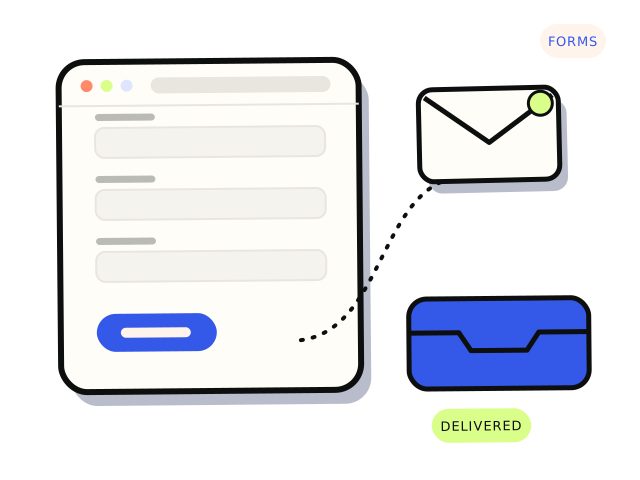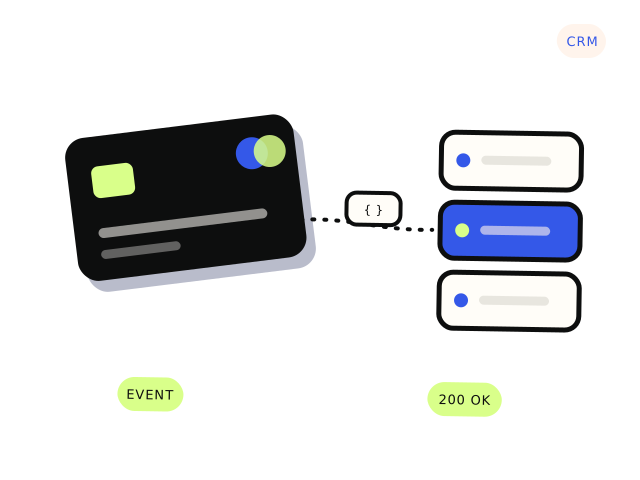
To connect a website form to HubSpot, Salesforce or another CRM properly, send each submission to the CRM’s API or native form endpoint, map every form field to a defined CRM property, match on email to avoid duplicates, record consent as its own field, and keep a copy of every submission with an alert when a send fails. Emailing submissions to an inbox, or relying on a third-party zap nobody monitors, is not an integration. It is a manual process with extra steps, and enquiries go missing when it breaks.
Why isn’t “email to inbox” an integration?
Email is a notification, not a data transfer. When form submissions arrive as emails:
- Someone has to retype or paste each one into the CRM, and some never get entered.
- Fields get mangled. Phone numbers lose their leading zero, and dropdown values arrive as free text.
- There is no reliable record of what was submitted, especially once emails are deleted or land in spam.
- Marketing source and consent are lost, so you cannot tell which page or campaign produced the lead, or whether they agreed to marketing.
- Delivery can fail silently. Our article on whether your contact form is actually delivering covers how often that happens.
Email notifications are still useful, so keep them. They just should not be the only place an enquiry exists.
What are the ways to connect a form to a CRM?
Use the CRM’s own form. HubSpot forms embedded on your site, or Salesforce Web-to-Lead, send straight into the CRM. Simple and well supported, though you get less control over design and validation, and Web-to-Lead has daily limits worth checking for your edition. Our HubSpot and Salesforce pages cover each in more detail.
Keep your own form, post to the CRM’s API. Your website’s form submits to your server, which validates the data, stores a copy and sends it to the CRM through its API. HubSpot, for example, offers a form submissions API that also accepts the visitor’s tracking cookie, so page-view history and attribution can still be linked. This gives the most control and is usually the most robust option.
Use an automation platform. Zapier, Make and similar tools can connect almost any form to almost any CRM without code. Fine for low volume, but they become another account to own, monitor and pay for, and failures often only show up in their task history.
How should form fields map to CRM properties?
Field mapping is where most integrations quietly go wrong. Before anything is built, list every field on every form and decide where each one lands:
- Use the CRM’s standard properties for standard things: first name, last name, email, phone, company. Avoid creating a custom “Phone 2” because the form called it “Mobile”.
- Match dropdowns exactly. If the form offers “Kitchen renovation” and the CRM property expects “kitchen_reno”, map the values explicitly, or submissions fail or create junk options.
- Split or combine deliberately. A single “Name” field needs a rule for first and last name, or ask for them separately.
- Normalise phone numbers and postcodes before sending, so Australian numbers are stored consistently.
- Capture context: the page URL, form name, and UTM campaign parameters if you use them. These answer “where did this lead come from?”.
- Decide what triggers what. A quote request might create a contact and a deal, while a newsletter sign-up only updates a contact.
How do you stop duplicate contacts?
The same person often fills in your form more than once, from different pages or months apart. Without a matching rule, you get several records for one customer, split histories and double-ups in reports.
- Match on email address. HubSpot deduplicates contacts by email by default when submissions come through its forms or API. Salesforce relies on duplicate and matching rules, which need to be configured and behave differently for leads and contacts.
- Decide what overwrites what. Should a new submission replace the phone number on file, or only fill it if it is empty? Should it change the lifecycle stage of an existing customer? Write these rules down.
- Handle submissions without email if your form allows phone-only enquiries, as these need a different matching approach or a review step.
- Prevent double submits on the form itself, so one impatient click does not create two records.
How should consent be recorded?
If you plan to send marketing emails to people who fill in your forms, consent matters. Under Australia’s Spam Act 2003, which ACMA enforces, commercial electronic messages generally need consent, identification of the sender and a working unsubscribe. The Privacy Act also shapes how you collect and use personal information. This is not legal advice, so check ACMA’s and the OAIC’s guidance or your adviser for your situation.
On the integration side:
- Use a separate, unticked checkbox for marketing consent. Submitting a quote request is not agreement to a newsletter.
- Store consent as its own CRM property, with the date, the form it came from and the wording shown, rather than inferring it from the fact that someone exists in the CRM.
- Use the CRM’s consent or subscription features where available, so unsubscribes are respected across all your email tools.
- Link your privacy policy on the form. Our article on the Privacy Act and your website forms covers what to check.
What happens when the connection fails?
It will fail eventually. API tokens expire, a CRM admin renames a property, a plan change removes API access, or the CRM has an outage. A good integration plans for that:
- Store every submission first, in your website’s database or form plugin, before sending to the CRM. Nothing is lost if the send fails.
- Retry automatically a few times for temporary errors.
- Alert a real person by email or Slack when a send fails for good, with enough detail to fix it.
- Log the CRM’s response, so you can see why a submission was rejected.
- Test monthly with a real submission and check it lands in the CRM with every field filled.
- Use a dedicated integration user or private app token, owned by the business, not a staff member’s personal login. Our guide on giving a developer access without passwords explains how.
If you are rebuilding your website anyway, plan the CRM connection as part of the build rather than an afterthought. Forms are often the main reason a business site exists.
If you only do three things
Map every form field to a real CRM property, store a copy of each submission before it is sent, and set up an alert for failed sends. Those three steps turn a fragile setup into one you can trust, and they make duplicates and consent much easier to sort out.
Connecting forms to HubSpot, Salesforce or another CRM is a well-defined API integration job. If the forms are part of a new landing page or small site, we can build both together under small websites. From $600. Most integrations land between $600 and $3,500.