Most WordPress sites run on a stack of plugins written by different people, plus a theme, on a server running a particular version of PHP. Each update is usually fine on its own. Problems come from combinations: a plugin that needs a newer PHP, a theme that relied on something a plugin removed, a WooCommerce extension that has not caught up with WooCommerce itself.
Leaving updates for months does not avoid that risk. It concentrates it, and adds known security holes in the meantime. Plugin vulnerabilities are one of the most common ways WordPress sites get compromised.
Before you update anything
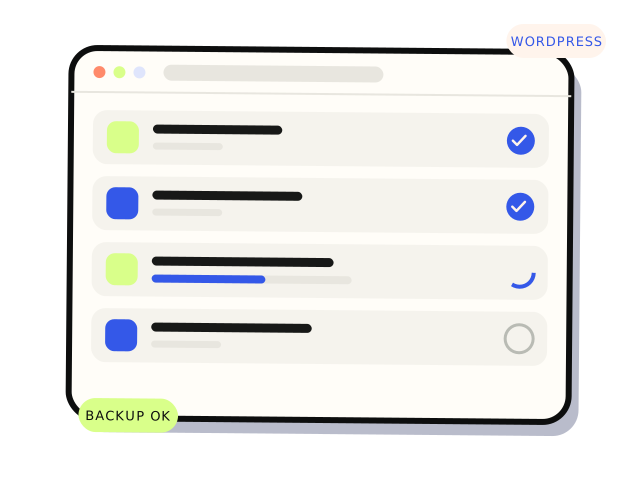
- Take a fresh backup of files and database, and know how to restore it. Many hosts provide one-click backups. Check yours.
- Use a staging copy if you can. Many managed WordPress hosts include one. Update there first, test, then repeat on the live site.
- Read the changelog for major versions. A jump from 7.x to 8.0 is more likely to change behaviour than 7.4.1 to 7.4.2.
- Check PHP compatibility. Some plugins now require a newer PHP version than older hosting plans default to.
- Pick a quiet time. Not during a sale, a launch or the hour before you leave.
Update in a sensible order
Update one thing at a time on anything important, and check the site after each. If something breaks, you know which update did it. A reasonable order is WordPress core first, then major plugins like WooCommerce and your page builder, then smaller plugins, then the theme. WooCommerce sometimes asks to run a database update after upgrading. Let it, after your backup.
What to test afterwards
- The homepage and a few key pages, on desktop and on a phone
- Every form: submit a test and confirm it arrives (see our contact form article)
- Search, menus and any filters
- For stores: add to cart, apply a discount, reach the payment step, and run a test order if your gateway has a test mode
- Logging in, if customers or members have accounts
If an update takes the site down
Since version 5.2, WordPress has a recovery mode. When a plugin causes a fatal error, it emails the site admin a special link that lets you log in with that plugin paused. Check the admin email inbox, including spam.
If you cannot get in at all, a plugin can be disabled by renaming its folder in wp-content/plugins through your host’s file manager or SFTP. Turning on WP_DEBUG_LOG in wp-config.php writes errors to a log file, which usually names the plugin responsible. If all else fails, restore the backup you took and work out the problem on staging.
Should you turn on auto-updates?
WordPress can auto-update plugins individually. For small, well-maintained plugins on a simple site, it is a reasonable choice and better than never updating. For WooCommerce, page builders, membership plugins and anything tied to payments, manual updates with a quick test are safer.
If you would rather not think about any of this, a maintenance plan handles updates, backups and testing on a schedule. For a one-off update that has gone wrong, our WordPress help is a fixed-price job. From $250 per defined fix. Most lists land between $250 and $2,000.